Widgets and UI Tables
Contains documentation about end-user scripts, such as widgets and UI tables.
User-Facing Scripts
The following section contains list of scripts that could be used directly by end-user.
Some scripts have only UI table functionality implemented, but some of them have both Widget and UI table.
Script Description
This widget is usable for Ukrainians due to frequent power outages, widget may benefit you by allowing you to see daily outage schedule right on your phone home page. Hour Ranges only support 24 hour format.
Limitations
Currently only Ivano Frankivsk OE website is supported. If you wish new region to be supported raise an issue in widgets repository.
Widget Configuration
- When interacting - Run Script
- Parameter - City,Street,Building (e.g. Івано-Франківськ,Стуса,10)
Running from widget
When you run script by clicking on a widget, OE chart would be displayed in Scriptable showing today’s and tomorrow’s schedule (if available).
Widget States
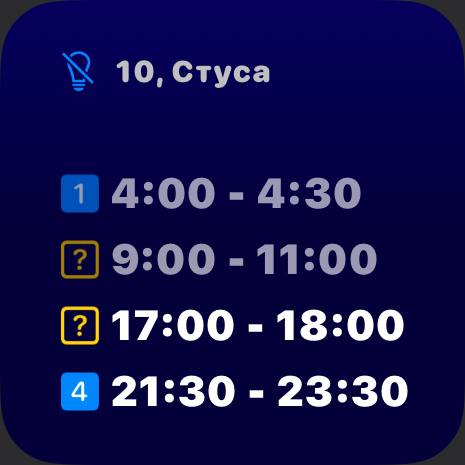 Today’s schedule available
In this widget state you can see two blocks, first contains location for which schedule is displayed
and the second one shows list of daily outage range scheduled for today.
Today’s schedule available
In this widget state you can see two blocks, first contains location for which schedule is displayed
and the second one shows list of daily outage range scheduled for today.
Each record contains outage identifier and actual hour range.
Outage identifier is a numeric icon that shows ordering in which outages would be
applied, the only exception is when outage is probable (meaning that it’s not 100% that it will occurr)
for this type of outages identificator is yellow question mark icon.
If outage has already passed it would be semi transparent, in this example current hour is 17:00 which means that first two outages are already in the past.
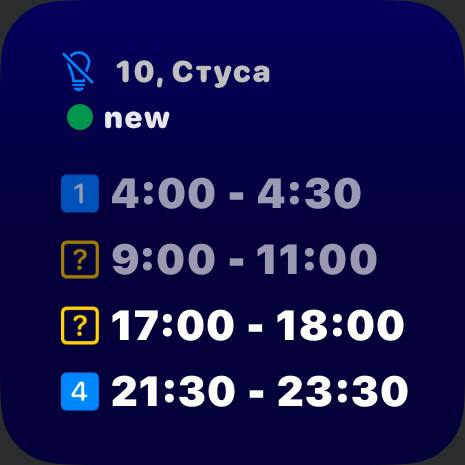 Tomorrow’s schedule available
This state is not much different from the previous one, except in this state below location block you can see an indicator.
This indicator is visible only if there are schedules for tomorrow available.
Tomorrow’s schedule available
This state is not much different from the previous one, except in this state below location block you can see an indicator.
This indicator is visible only if there are schedules for tomorrow available.
Color of the indicator dot may vary, if tomorrow schedule is available and there are outages then color would be red. If tomorrow schedule is available but at the moment there are no outages planned then color would be green.
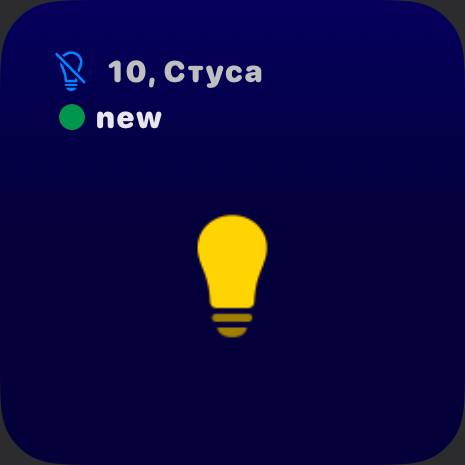 Today’s schedule has not outages
This state is displayed when there are no outages in today schedule. When no outages in today’s schedule then large
yellow light bulb placeholder image would be displayed.
Today’s schedule has not outages
This state is displayed when there are no outages in today schedule. When no outages in today’s schedule then large
yellow light bulb placeholder image would be displayed.
As you can see even if there are no outages for today, tomorrow schedule indicator would still be displayed if tomorrow schedule is available.
 Internet connection not available
This state is displayed mainly when there are no internet connection on user’s device in this case
placeholder showed on image would be displayed to the user.
Internet connection not available
This state is displayed mainly when there are no internet connection on user’s device in this case
placeholder showed on image would be displayed to the user.
This state may also be triggered when OE website is not available.
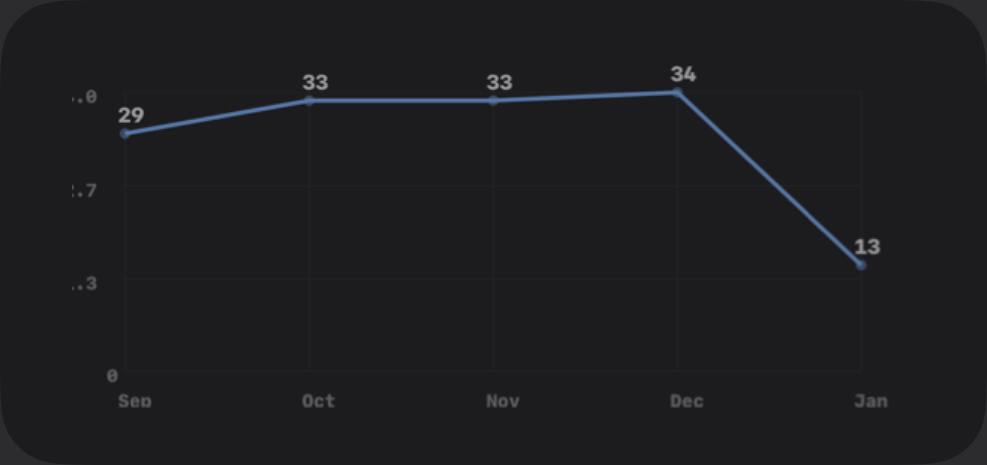
Script Description
If you want to have a summary of events then this widget is what you need. It reads calendar events and plots them on linear chart widget.
Widget Configuration
- When Interacting - any
- Parameter - {“calendar”: “Calendar”, “period”, 6, “mode”: “dark”, “trimBlank”: true}
- calendar - name of calendar from which events should be read.
- period - amount of months that should be plotted.
- mode - theme, could be either dark or light.
- trimBlank - useful when plotting events from old calendars that didn’t have any events in recent months. When set to true will skip all latest months with no events.
Script Description
If you like to follow releases of new episodes of your favorite series then this widget is exactly what you need. Widget uses Episodate Open API to obtain series information.
Widget Configuration
- When Interacting - Run Script
- Parameter - series ID from Episodate API (e.g. round-six)
How to obtain series ID
- Open Episodate website.
- Search for the desired series (e.g. Squid Game).
- In search results screen select series that you wish to add to widget.
- Once series page has loaded take a look at the URL.
- Copy part of URL after ‘../tv-show/’ this is your series ID (e.g. https://www.episodate.com/tv-show/round-six).
Google Vision API Integration
Widget uses Google Vision API to get dominant color for the series which can be seen behind the series image and as background
of countdown block. To be able to use the API you need to create a Google API key and put it into ~/Resources/New Episode Tracker/google_vision_api_key.txt.
Be aware that API is public but has limitations, you only have 1000 requests that you can send for free in month. After widget has obtained dominant color for the series it will store it in resources of the script for later use.
Be aware that developer of this widget doesn’t take any responsibility for any financial losses resulting from exceeding API usage limit.
In case if you don’t want to use Google Vision API you can just avoid this step, in cases when API key is
invalid fallback dominant color would be used, which could be configured through .fallbackDominantColor feature.
Rerolling Dominant Color
If you’re using Google Vision API script will request three dominant colors and then pick random from the list,
if you’re not satisfied with the color you can reroll it by enabling rerollColor feature. After enabling click on the widget you want
to change color for, once color satisfies you make sure to turn off rerollColor feature.
Widget States
 Countdown is available
First of all you can see several key elements, series thumbnail, title, countdown to the next episode as well as identificator of the
season/episode that should be released and also date on which episode would air.
Countdown is available
First of all you can see several key elements, series thumbnail, title, countdown to the next episode as well as identificator of the
season/episode that should be released and also date on which episode would air.
Countdown block displays amount of time that is left before next episode would be released.
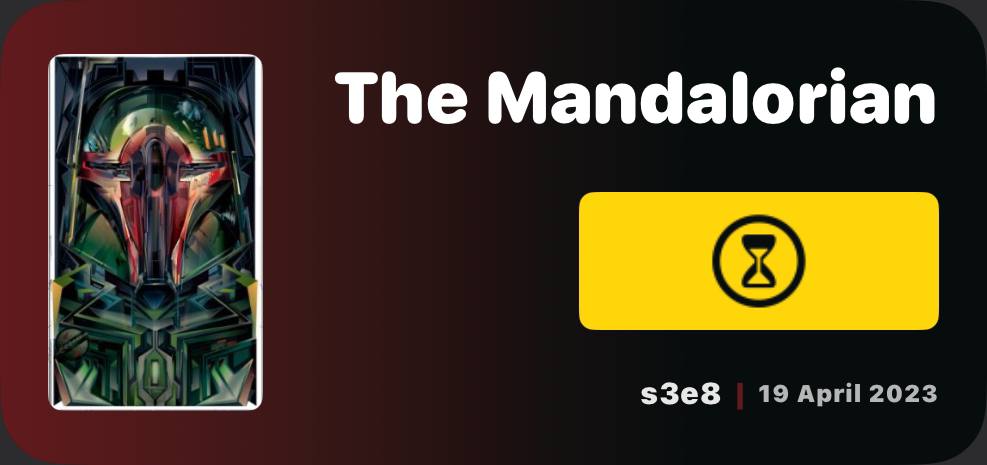 Countdown is not available
In this state you can see that countodwn block is slightly different, it displays icon of hourglass instead of actual countdown
this screen is displayed in scenarios when there is no information on when next episode would air. Block below countdown in this state
displays information about last available episode.
Countdown is not available
In this state you can see that countodwn block is slightly different, it displays icon of hourglass instead of actual countdown
this screen is displayed in scenarios when there is no information on when next episode would air. Block below countdown in this state
displays information about last available episode.
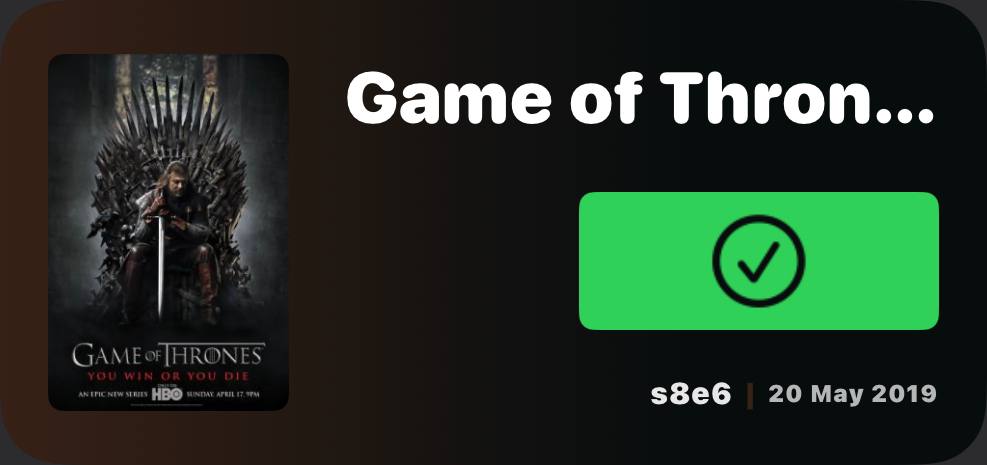 Series has ended
This state has similar behavior when compared to the previous state. This one is displayed when series has already finished and
no new episode would air for the series. Block below the countdown here also displays information about last available episode, which
is basically last episode of the series.
Series has ended
This state has similar behavior when compared to the previous state. This one is displayed when series has already finished and
no new episode would air for the series. Block below the countdown here also displays information about last available episode, which
is basically last episode of the series.
Stop Watcher
Script Description
If you enjoy watching series and always forget place where you left off then this widget might just be for you. You can add series to the widget and keep track of the season, episode and timecode you’re watching currently.
UI Table Structure
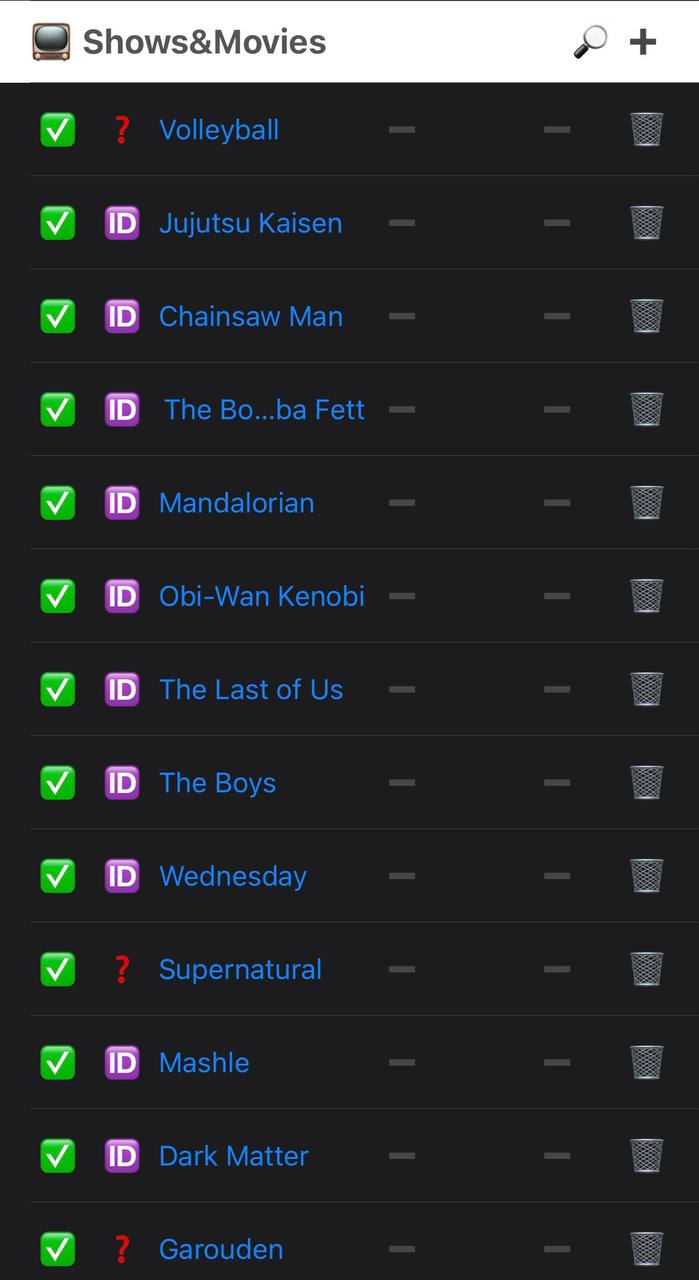
- Status
Whether you are still watching series or have already finished it and waiting for next season. - Could be either ‘Done’ or ‘In-progress’ - If status is ‘Done’ then series/episode and timecode fields would be hidden - WatchQ Integration Field
This field should be used if you want to use WatchQ along with Stop Watcher - Has series ID field (see how to obtain series ID section) - Has action to toggle visibility of series in WatchQ widget (would still be visible in UI table if toggle if OFF) - Series Name
Name of the series, you can put anything you want here - Value of this field is used to as parameter for the widget - Season/Episode
Used to update season and episode of the series - Has Season form field - Has Episode form field - Has action to update episode number by one - Each time season or episode is updated - timecode would reset - Timecode
Used to update timecode where you left off watching - Contains hours and minutes sliders - Delete field
Generic delete field used to remove series from table
Widget Configuration
- When interacting - Run Script
- Parameter - %Series Name from UI table%
Running from widget
Running script from widget will open UI table where you can view and update series information.
Widget States
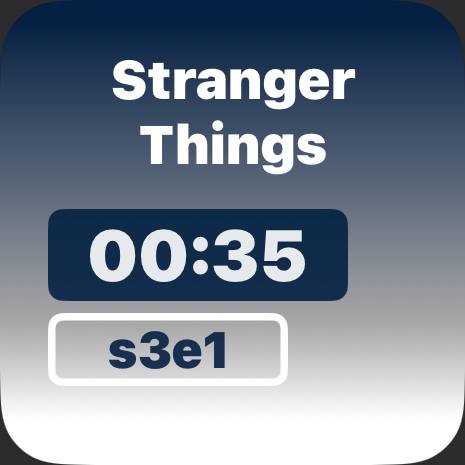
Episode partially watched
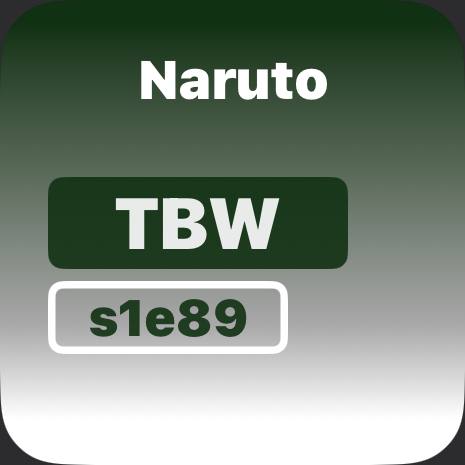
There are several blocks you can see, such as series title, block with timecode of the episode as well as season/episode tag.
 Episode not watched
As you can see this state is not much different from the previous one, except here you can see that timecode block displays ‘TBW’ which
stands for ‘To be watched’.
Episode not watched
As you can see this state is not much different from the previous one, except here you can see that timecode block displays ‘TBW’ which
stands for ‘To be watched’.
 Series has ended status
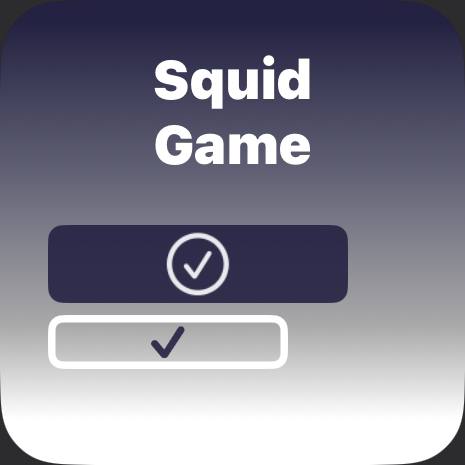
In this state both timecode block and season/episode tag block contain question mark placeholder.
Series has ended status
In this state both timecode block and season/episode tag block contain question mark placeholder.
Script Description
Widget should be only used together with Stop Watcher widget it will pull series with serie ID set as well as information where you left of and will pull datat from Scriptable API to calculate how many episodes is left for you to watch.
UI Table Structure
- Series Name
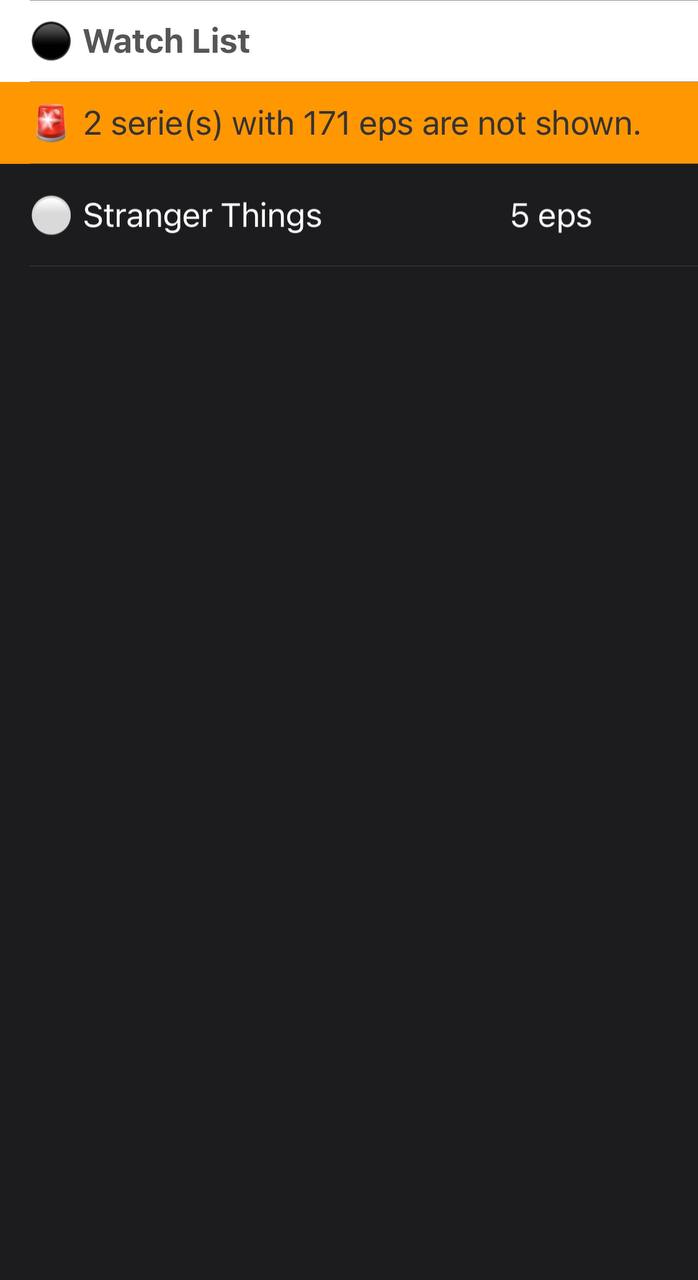
Name of the series that you haven’t finished yet - Episode Count
Amount of episodes that you still need to watch in order to catch up
UI Table Notices
- Hidden Series Summary
This notice contains summary on how many series and episodes in total are not being shown in UI table and not being displayed in widget. Only series that have unwatched episodes but have WatchQ visibility turned off in Stop Watcher are not shown.
Widget Configuration
- When Interacting - Run Script
- Parameter - No parameters
Running from widget
When running script from widget UI table with detailed list of how much episodes for each of the series have left to watch.
Widget States
 Watchlist is not emtpy
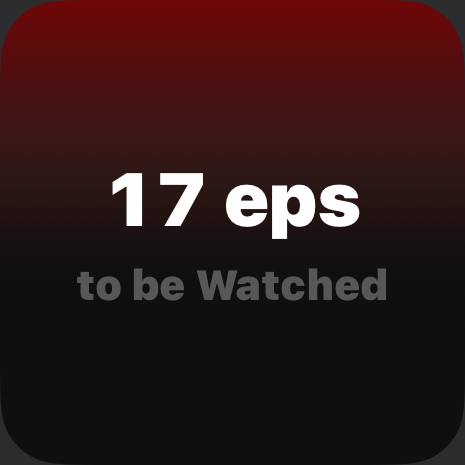
In this state widget contains total amount of episodes from all series that you still need to watch.
Watchlist is not emtpy
In this state widget contains total amount of episodes from all series that you still need to watch.
 Watchlist is empty
This state is triggered when there are no new episodes for the series from Stop Watcher that you can watch.
Watchlist is empty
This state is triggered when there are no new episodes for the series from Stop Watcher that you can watch.
Internal Scripts
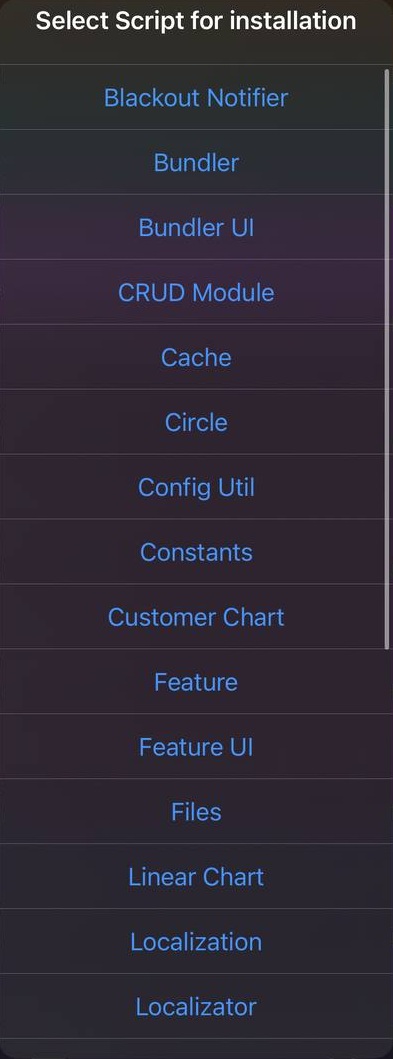
Script Description
The Script Installer acts as a bridge between the remote GitHub repository and your local Scriptable environment. It automates the process of fetching the latest project files, bundling dependencies on the fly, and synchronizing localized resources and feature flags. It effectively serves as a custom “package manager” for your private or public Scriptable tools.
Limitations
- GitHub API Rate Limits: The script uses a 24-hour cache for repository tree requests to avoid hitting GitHub’s rate limits (60 requests per hour for unauthenticated users).
- Base64 Overhead: Files are fetched as GitHub “blobs” in Base64 format. Large binary assets may take longer to process and convert.
- Temporary Storage: The script requires enough local storage to hold a full clone of the repository metadata and files before it extracts the specific script you requested.
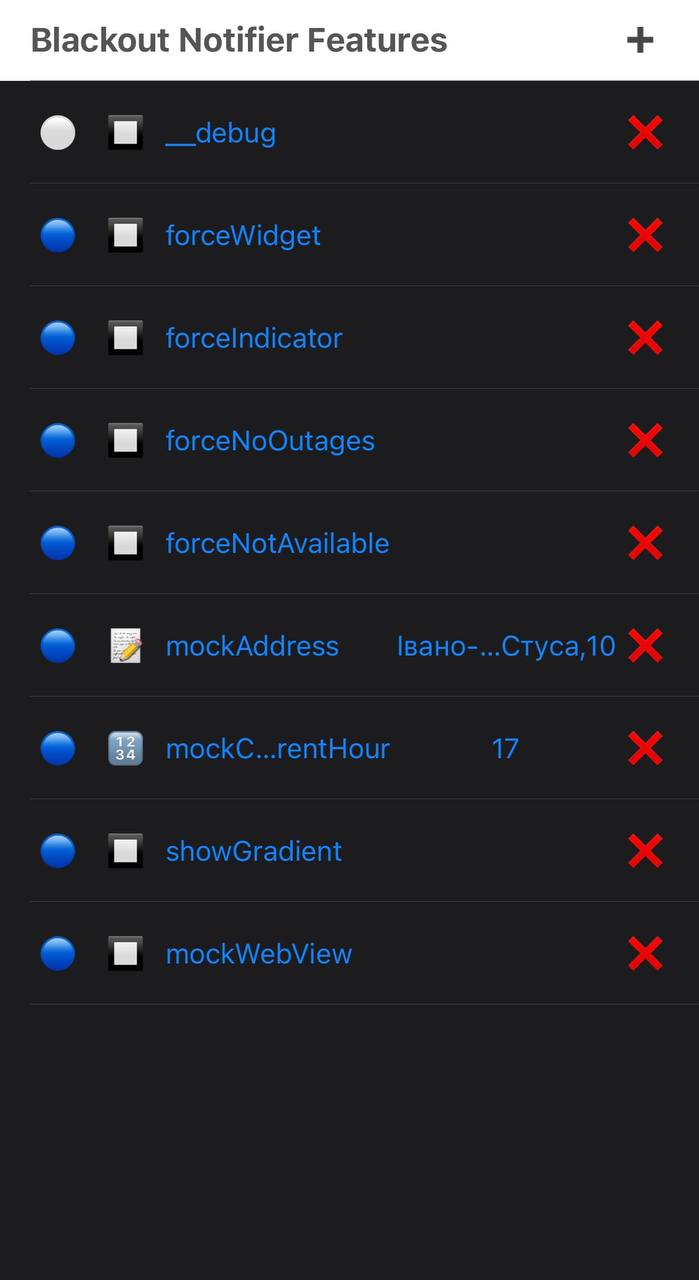
Script Description
The Feature UI script is a management tool for Scriptable developers to toggle and configure feature flags (or “debug configurations”) for other scripts within the project. It provides a visual CRUD (Create, Read, Update, Delete) interface to manage feature states without manually editing JSON files. It supports three data types: Boolean, String, and Number, and includes logic to handle “Config Features” (system-level flags) that cannot be disabled.
If triggered from a widget, the script will attempt to present a Modal for script selection. However, for the best experience:
- Open the Scriptable App.
- Run Feature UI.
- Select the target script from the prompted list.
- Interact with the Data Table to modify features.
Limitations
- Debug Feature: Debug feature of a script should always have a name __debug and be of boolean type.
- Directory Dependency: The script relies on the Files module to find directories that specifically contain feature configuration files.
- Number Validation: Numeric features must be positive numbers; otherwise, they revert to a fallback value (123).
- Boolean Restrictions: Boolean features cannot hold an additional string/number value; they only respect the Enabled/Disabled state.
- Protected Flags: Features starting with a dot (.) are treated as configuration indicators and their “Enabled” state is locked to true.
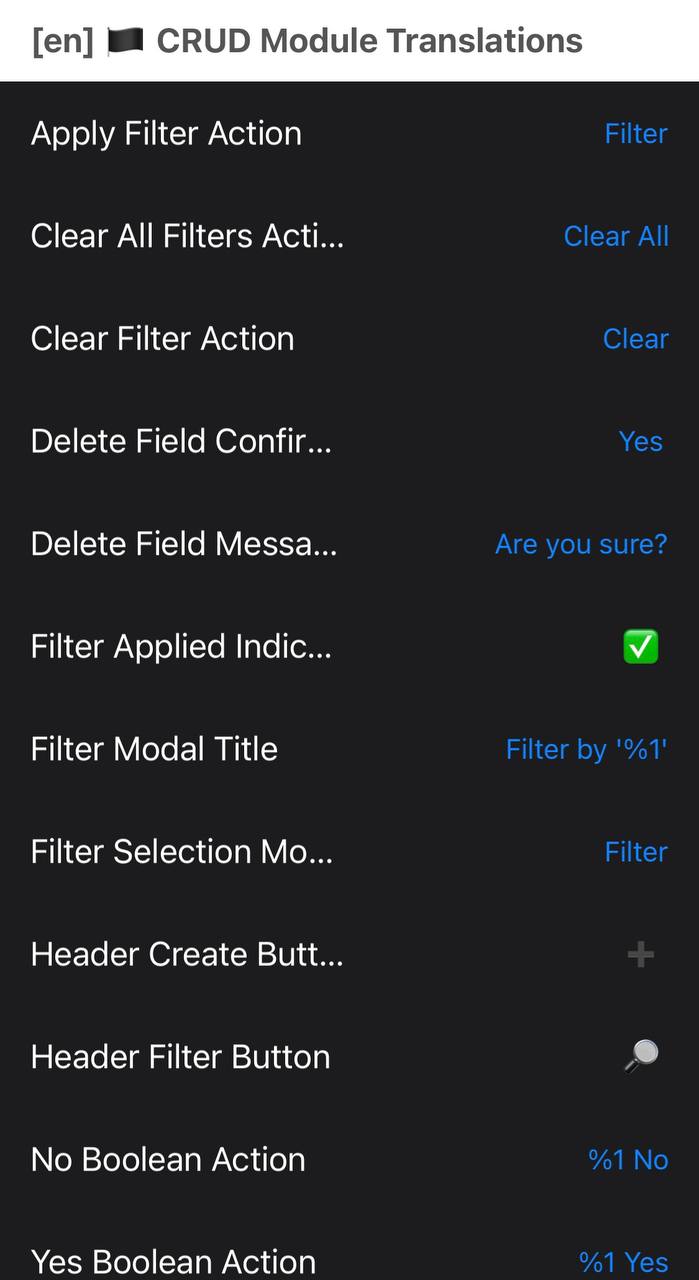
Script Description
The Localizator script is a utility designed to simplify the localization process for Scriptable projects. It automatically detects the user’s system language and provides a tabular interface to translate keys from a primary script. It handles the synchronization between the default English (en) locale and the target language, ensuring that any missing keys in the target locale are populated from the default template.
This script is intended for use within the Scriptable App to allow for keyboard input and modal interaction. It is not compatible with Home Screen widget execution.
Limitations
- Language Detection: It identifies the target language based on the primary language of the device (e.g., “fr” from “fr-FR”).
- Key Format: It assumes a specific naming convention (e.g., prefix_camelCaseKey) to accurately transform technical keys into readable labels.
- Template Dependency: The script requires an existing en.json (or equivalent) in the script’s locale directory to act as the source template.
Script Description
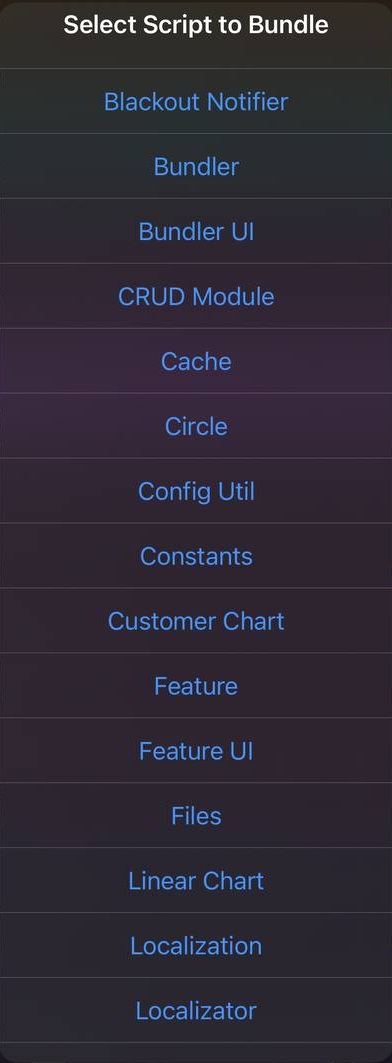
The Bundler UI is a distribution utility that converts modular development projects into single-file executables. It recursively scans a script for importModule calls, extracts the code from those dependencies, strips out Scriptable-specific metadata and module.exports blocks, and combines everything into a new file suffixed with (Bundled). This is particularly useful for sharing scripts with users who do not have your entire library of modules installed.
Limitations
- Regex-Based Parsing: The bundler uses Regular Expressions to find dependencies. It expects standard formatting:
const { ... } = importModule("...");. - Metadata Stripping: It assumes the first 3 lines of every script are the Scriptable metadata (icon, color, etc.). Only the metadata from the main script is preserved in the final bundle.
- Flat Scope: Since it merges files into a single scope, you must ensure there are no variable name collisions between your main script and its dependencies.
Script Description
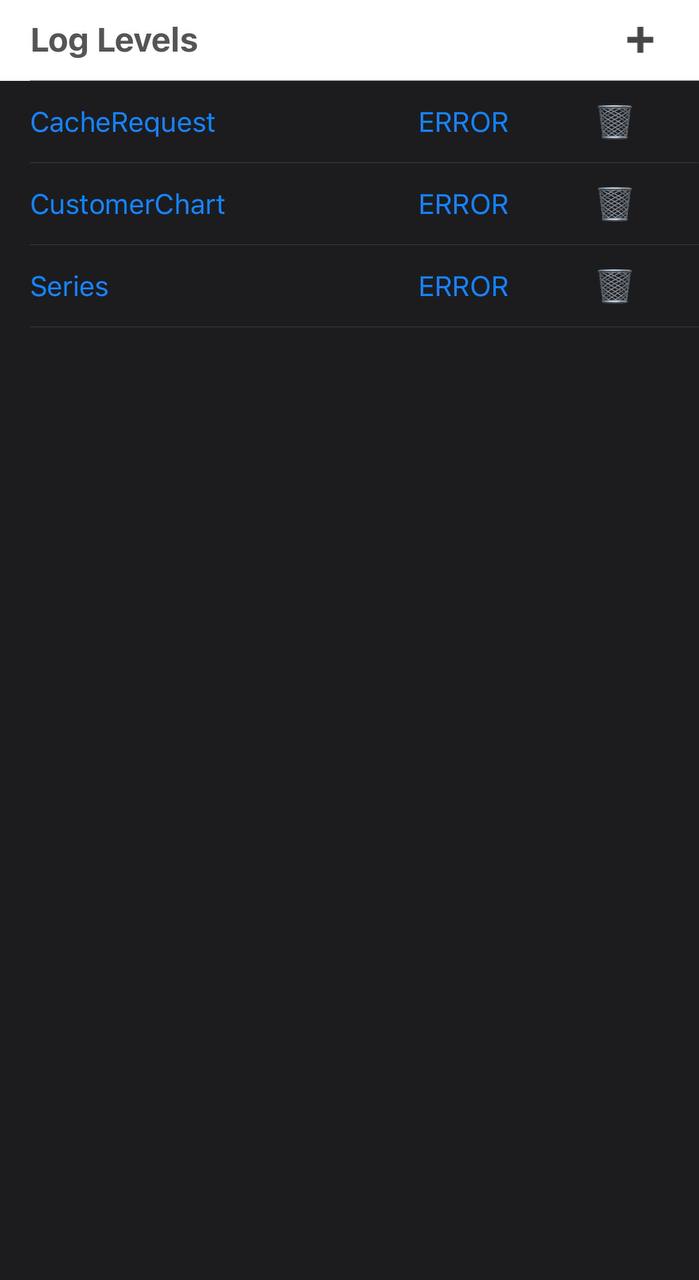
The Logger UI script provides a centralized management console for controlling the verbosity of various services within your project. It allows you to define specific log levels (e.g., DEBUG, INFO, WARN) for individual services on the fly. This data is persisted in a levels.json file, which the main Logger module consumes to determine whether a specific log message should be suppressed or displayed.
This script is designed for App Mode only. It utilizes complex table interactions and form actions that are not supported in a standard Home Screen widget.
Limitations
- Global Persistence: Unlike the Feature UI, which is script-specific, this script manages a global levels.json file specifically for the Logger script directory.
- Predefined Levels: Users are restricted to the levels defined in the LogLevel enum (OFF, INFO, WARN, ERROR, DEBUG).
- Service Naming: Service names are free-text; ensure they match the strings used in your Logger calls within other scripts.